
If you work with PDF documents containing bookmarks — such as a combined portfolio containing a cover email and several attached reports — you might need to extract these individual sections into separate files. Manually extracting pages can be time-consuming, but if your PDF is organized with bookmarks, 2PDF can automate the entire process from the command line.
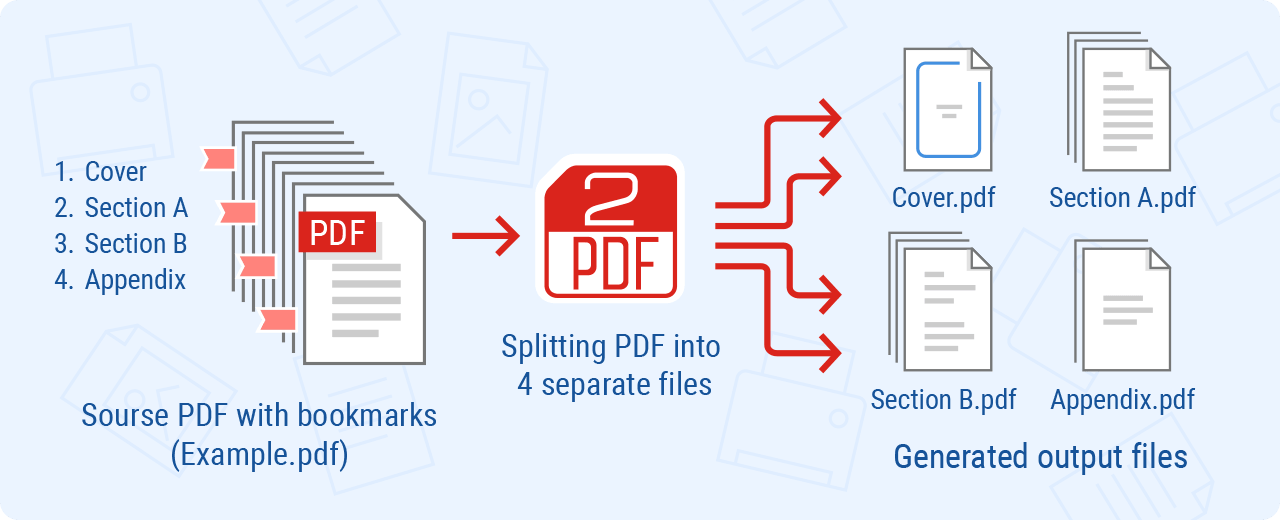
In this guide, we will walk you through how to list existing bookmarks, split an entire PDF (or multiple PDFs at once) based on its bookmarks, and extract only specific bookmarked sections.
For the examples outlined below, we will assume your source PDF files are located in C:\In\ and you want to save the output files to C:\Out\.
Before you begin: Get a list of bookmarks from your PDF
This is entirely optional, but before splitting a document, it is often helpful to check the exact names of the bookmarks it contains. You can use 2PDF to read the document and return a list of all available bookmarks.
Use the -info bookmarks parameter:
2pdf.exe -src "C:\In\Example.pdf" -info bookmarks
This command will output a list of the bookmarks found inside "Example.pdf", which you can then use in the following steps.
How to extract all bookmarked sections into separate files
If you want to divide the entire PDF into multiple files based on every bookmark it contains, you can use the split mode.
To ensure the output files are easily identifiable, use the -options template parameter to automatically name the new files based on the original filename and the bookmark name.
2pdf.exe -src "C:\In\*.pdf" -dst "C:\Out" -pdf multipage:split split_mode:bybookmarks -options template:{*SrcFilename}_{*BookmarkName}.{*DstFileExt}
How it works:
-pdf multipage:splittells the program to split the document.split_mode:bybookmarksdefines that the split should happen at the start of each bookmarked section.template:{*SrcFilename}_{*BookmarkName}.{*DstFileExt}generates the filenames for output PDF files (e.g.,Appendix_A.pdf,Appendix_B.pdf).
For full technical details on all available splitting methods, refer to the 2PDF Syntax: Split mode documentation.
How to extract only one specific bookmark
Sometimes you don't need the whole document, just one specific section. You can instruct 2PDF to search for a specific bookmark name and extract only the pages associated with it.
Use the bookmark: "[Name]" parameter to define which section to extract:
2pdf.exe -src "C:\In\*.pdf" -dst "C:\Out" -pdf multipage:split split_mode:bybookmarks bookmark:"Cover_Letter" -options template:{*SrcFilename}_{*BookmarkName}.{*DstFileExt}
This command will look through all PDFs in the input folder, locate the bookmark titled "Cover_Letter", and extract only that specific section into the output folder.
To learn more about targeting exact section names, check out the 2PDF Syntax: Bookmark documentation.
How to extract multiple specific bookmarks
If you need to extract two or more specific sections while ignoring the rest of the document, you can simply chain multiple bookmark: "[Name]" parameters together in the same command line.
2pdf.exe -src "C:\In\*.pdf" -dst "C:\Out" -pdf multipage:split split_mode:bybookmarks bookmark:"Cover_Letter" bookmark:"Appendix_A" -options template:{*SrcFilename}_{*BookmarkName}.{*DstFileExt}
By specifying multiple bookmarks, 2PDF will extract the "Cover_Letter" section and the "Appendix_A" section, creating a separate PDF file for each, while bypassing any other sections in the original document.
Summary
Using 2PDF's bookmark splitting features allows you to effortlessly break down massive, heavily structured documents into relevant files. Whether you need to separate hundreds of bookmarked invoices or just pull a single chapter out of a digital manual, these simple commands will easily automate your workflow.

You may also like to read:
How to Merge Files into One PDF and Use Source File Names as Bookmarks